Showing posts with label Google Forms. Show all posts

Saturday, June 21, 2014

SCRIPT ALERT!! AUTOCRAT!

Hey guys, I just finished making my first successful mail merge with autoCrat. autoCrat is another script or add on by Andrew Stillman that lets you merge results from a spreadsheet of a Form survey with a document template to mass produce individual returns or feedback from the submitted Form. Sound confusing? It's really not so once you have ran a couple of them yourself.

For example, this week I did a flipped class assignment and had my students give a YouTube Video Review on the assigned topic of Perfect Tenses of English. After filling out the form, I wanted to send my students an e mail confirmation resulting in a mail merge product. 

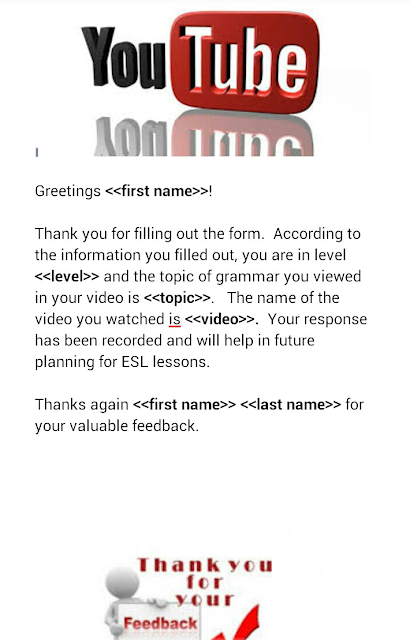
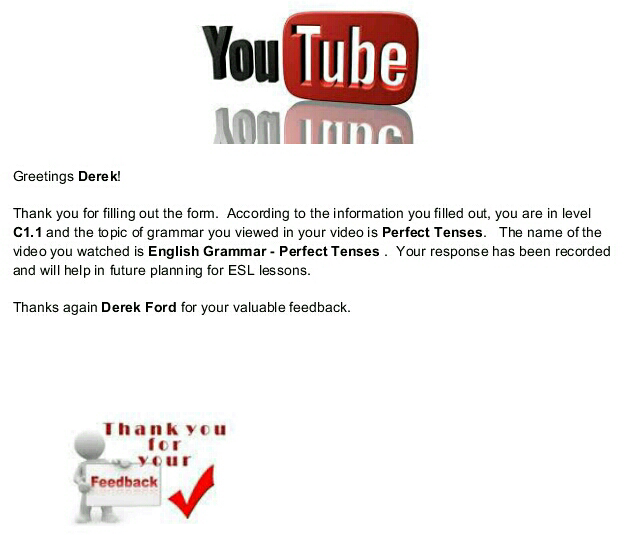
In their class blog, I pasted a link to a Google Form for reviewing a video (see below). Once the students completed the Form, I went to the response spreadsheet of that same Form and inserted Autocrat from the scripts gallery option.  Previously, I had created a shared document in Google Docs (see below) featuring carrots <<>> of where I wanted the information from the response spreadsheet to appear in their future mail merged confirmation. I also had to create folder for the final destniation storage of the final mail merged documents. After I ran Autocrat,  I checked my destination folder in Google Drive and found a mail merged copy of responses and the document I created for each Form submission by the student. Perfect!! Next, I emailed each student a copy their own individualized  email merged confirmation document.

I honestly feel that this script is probably more effective for administraation purposes versus classroom. I also understand that certain features that were available in the old Google spreadsheets, like automatically triggering return responses, are not available in the new Google spreadsheets so you will have to use an old sheets version if you want to have Google email the final mail merged documents to students without you having to do so.  To find out how to create your own mail merged document using autoCrat, check out this link to a video by Jesse Thorstad! http://youtu.be/xeRhzz4RuCA

Best,
#mrford#techsavvyteacher
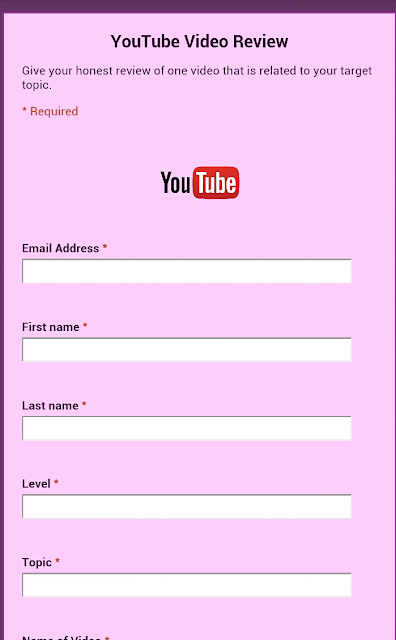

My YouTube Video Review Form made in Google Forms


Shared document I created in Google Docs for mail merge

Final mail merged product via Autocrat

Monday, May 26, 2014

SCRIPT ALERT!! formLimiter!

One of my favorite little scripts is formLimiter.  Have you ever given a Google Form quiz or test and ended up screaming at your students who refuse to turn in the damn thing at the end of class because they want more time? Have you ever sent a link of that Form to a student who missed the quiz/test and it takes them two weeks to a month before their responses end up in your spreadsheet because the student knew there would be no time limit to handing it in?  Have you ever used Flubaroo to batch grade an assignment only to have that one student tell you they just handed it in after you have already sent student scores back?  The reinforcement of deadlines in a Google Forms can be ever annoying. Well, with formLimiter, reinforcement of submission deadlines just got real.

Unlike most scripts, formLimiter is easy to set up for beginners in script using. It is pretty straight forward. After you install the script, select how you want to limit the responses to the form by time limit, total number of responese or spreadsheet cell value.   For me the time limit is most useful. I can select a date and time to set for deadline submission.  After set, the form will no longer accept submissions.  This is great mostly because it will train students to respect deadline submission time and allow the teacher to stay better organized.  You can even send a notification to editors when the time limit is reached.  For more on formLimiter or more scripts in Google Forms, check out http://cloudlab.newvisions.org/

Best,
#mrford#techsavvyteacher

Tuesday, May 20, 2014

APP ALERT!! MOBILE ATTENDANCE!

Mobile Attendance - Android Apps on Google Play
 Well, it's bee n a minute, but we (me) are back with another app that must be brought to the attentnion of every tech savvy teacher, and it's called Mobile Attendance by INNOVA Apps.    A few months back I was struggling to find an attendance app for my classroom. After a few trial apps, I settled with Eval Safety Attendance in The Google Play Store. I loved the idea of using QR Codes to take attendance from my smartphone and so did my students.  It was easy to use, but the reports didn't produce the spreadsheet format in Google that I wanted.  All that is different with Mobile Attendance. The spreadsheets are easy to set up, report in real time, and are shareable like any other Google document. The app creates QR Codes in Google Docs for print out. Perfect, everything stays in Google. The best part of the whole process is that students love to use their phones, tablets, or laptops to check in. I had my students take a photo of their personal QR code and save it to their phone or tablet homescreen for easy pull up.  If they forget their device at home, they should keep the original copy on them somewhere, but worst case scenerio, you can print up a back up copy of all your students' codes and  keep it on you as well.  The olny downside to this app is that the free trial only lasts for only two weeks, after that it's at least $6.85 a month (yikes!). Check the video below or click the link under the photo above to check out Moblie Attendance for yourself and see if you want to try it! Best, #mrford#techsavvyteacher


Saturday, March 15, 2014

Google Chromebook: Review

I bought my Acer Google Chromebook  C720 back in November 2013 from a Best Buy in Newnan, GA. My previous laptop, also an Acer, but was infected with a virus from a memory stick that was given to me by my job. After my employers refused to accept responsibility for infecting my laptop, I was in desperate need of a replacement at an affordable price.  As an educator who spends over 60% of his day inside Google, I figured that a Chromebook was the obvious choice for a renewal.  The price was also a great lure. A Google laptop for under $200 was flipping Awesome! Boasting features like; virus resistant security design, extremely light weight and to go size, instant on, web based applications and video conferencing, I was overwhelmed by the salesperson who seemed to be a bigger Google guru than me.  The personalization aspect became apparent as soon as I signed into Google and all my Google applications appeared at the bottom of my screen. Instant access to my files in Google Drive, my videos on YouTube, my Calendar and Gmail.  It seemed like Chromebook was perfect for me. But after a few months, I'm starting to think I should have done a little more research before I just dived on in. Here are my gripes;


  • No VPG plug. This is a big time deal buster for me that I didn't notice before I purchased.  Not only are VPGs necessary for class presentations, but conference presentations as well. 


  • No CD player. For me this is not a big deal, but for those big movie goers who have no idea that the same movies are available online and faster download speed, this is more annoying than a car alarm that refuses to stop blaring off.


  • Can't install Windows. Since there is no CD player, of course installing programs is impossible.  Personally, I am not a huge fan of Windows, but as I have recently been searching for part time work as an online tutor, I am finding that ALL online tutoring companies require Windows.  


  • Small storage capacity. This is a big deal for some, but then again, when you do most of your storage in the clouds, do you really need a laptop with a lot of storage space.


Overall, I am satisfied with my purchase. I love the battery life and its quick recharge time.  Its weight and small size takes up more space than most books in my book bag; And for $200, I can't complain too much. I just wish I had done a little more research before I purchased. So, with that being said, I hope this quick review helps you make a sound decision if you have been in the market for a Chromebook.

Best
#mrford#techsavvyteacher


Thursday, December 19, 2013

Using Google Forms to Create Quizzes for Your ESL Classroom

I've been a paperless teacher for over a year now and I honestly can't tell you the last time I actually had to stand over a copy machine. Thanks to Google, myself and tech-savvy educators across the world have ditched the traditional paper based Microsoft Word and opted for cloud services.  For me, the transition was almost invisible. I didn't even notice I had become a paperless teacher.  Features inside of Google Drive such as: Docs, Presentations, Spreadsheets, Forms and the Chrome App Store with their easy integration and organization have made it easier for educators to create, share, and store information like never before without the need for printing papers or documents.

Such is the case with Google Forms. Over the last few months, Google Forms has been my most used app inside Google Drive, especially when designing interactive TOEFL quizzes to be delivered to students over their phones or tablets.  Most ESL teachers I come across have NO idea that Google Drive even exists.  They are still avid users of Microsoft Word and rarely touch a Word product other that MW and PowerPoint.  They still consider Google to be just a search engine. During my presentations at conferences all across Georgia, I can't tell you how many times I still hear educators with over 20 years experience in the classroom scream, "WOW" when I show them how to use Google Drive products in the classroom.

Google Forms is originally designed to execute questionnaires, inventories, and surveys, but can also be used to design classroom quizzes featuring images and YouTube videos.  Along with a very famous script known as Flubaroo, theses classroom quizzes quickly become self grading and scores are stored in spreadsheets and emailed to students within minutes.  I first discovered Forms when as a student life coordinator, I wanted to make a small questionnaire for students exiting the institution I worked for.  After playing around with it, I quickly discovered that Forms could be used as a replacement for multiple choice tests we administered to our students who took their level up moving tests.  Not only was my discovery very effective, it eliminated the use for our outdated scan tron machine and the expensive papers that were piling up in our storage room.

The best part of Forms in my opinion, is that it provides transparency between students and teachers as the answer sheet can be attached to the students' email reported scores.   I usually review the quizzes immediately after they are scored and the answer sheet helps make it easier for students to recognize their mistakes.


Forms comes with a nice amount of colorful themes for its templates and includes a question types such as; Text, Paragraph Text for longer answers, Multiple Choice, Check Boxes, and Choose from a List. To find out more about Google Forms, try it yourself today! Just go to your Google Drive and select Form from the 'Create Menu.'

#mrford#techsavvyteacher